This section explains how patients and staff members who work as chat users
can register and use the application. This feature allows patients and
staff to communicate securely with each other. Using this section is free
and does not require purchasing a subscription.
Account Registration or Login
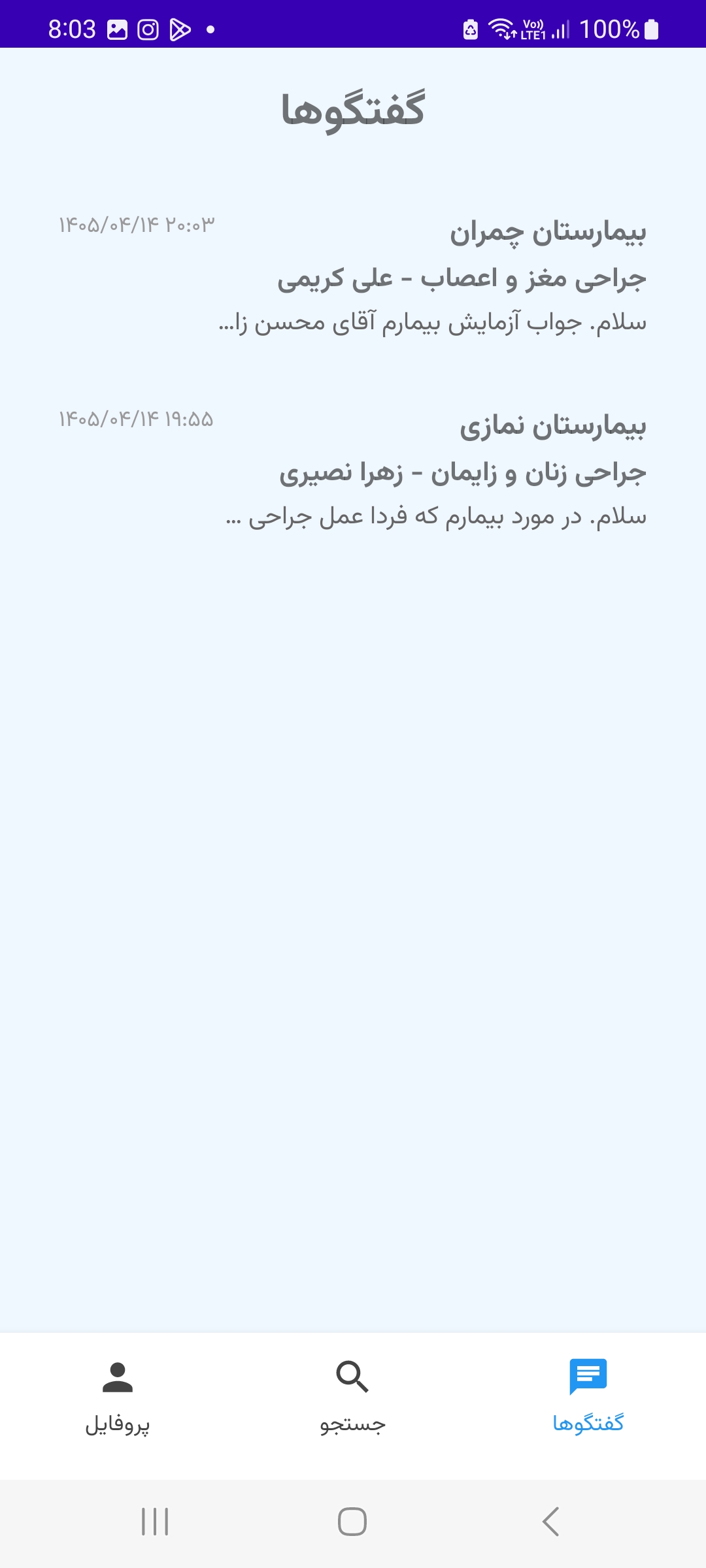
After registration and login, you will be redirected to the app’s
chats section. On this page, you can view your conversations with
selected care centers. In the “Search” section, you can also use
advanced search to find centers that match your needs and then
start a conversation with them.
-
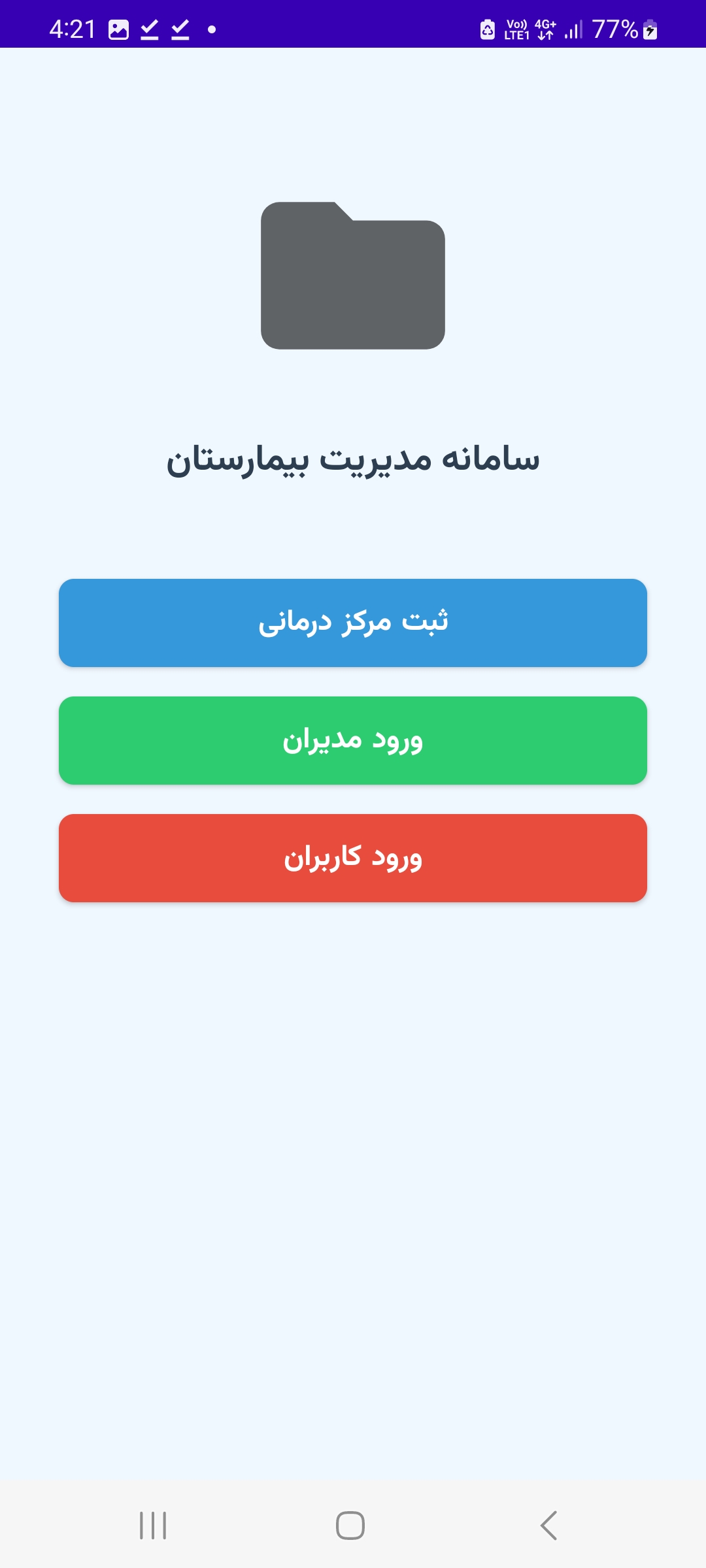
Open the application and tap “User Login”.
-
If this is your first time entering the app, tap “Register”.
-
Enter your phone number or account information.
-
Complete the verification steps. You will then be redirected to
the main page of the application.
Search
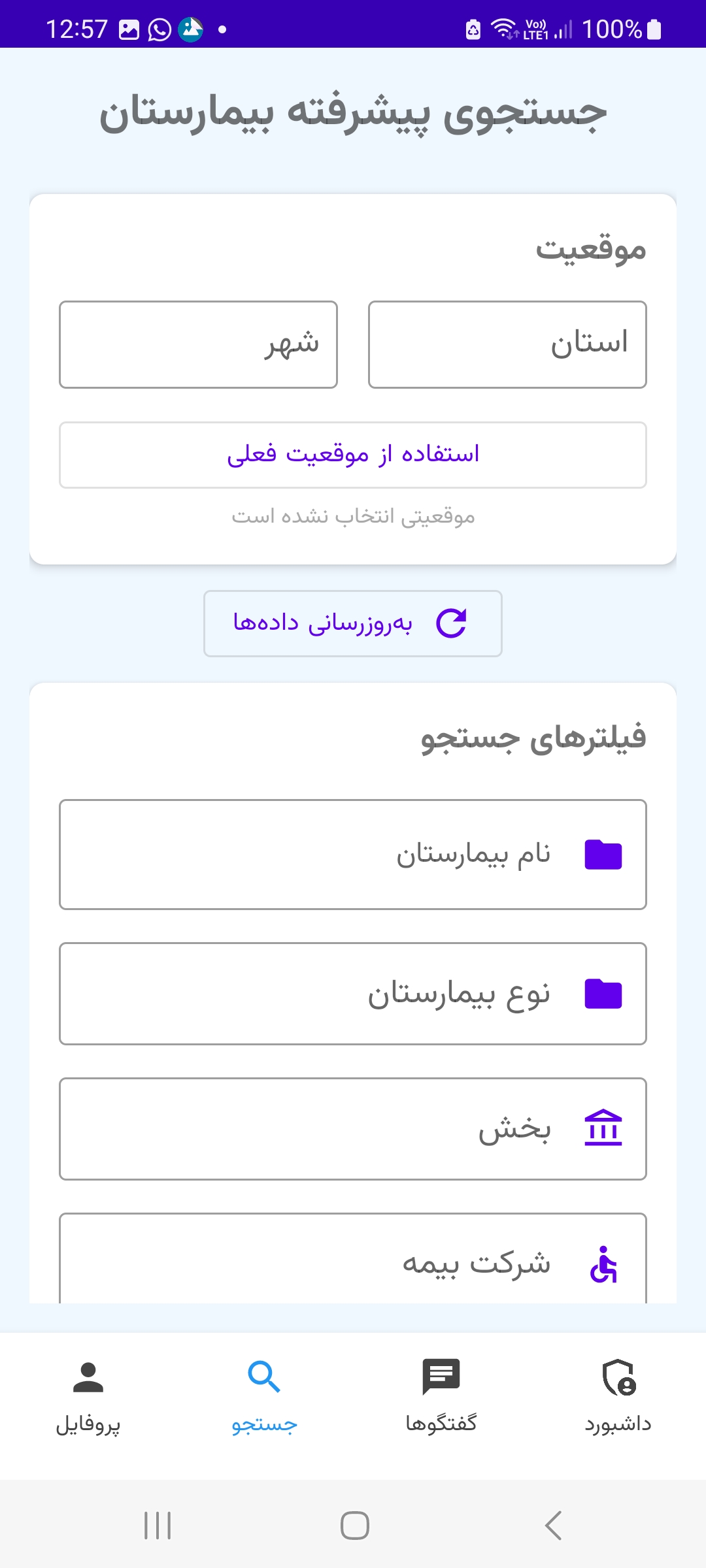
In this section, you can perform an advanced search based on your
preferred criteria. You do not need to complete every field or
criterion.
-
First, define the geographic search area. You can enter the name
of the city where you want to search, or tap “Use Current
Location” to use your current location. You cannot use both
options at the same time. If you choose “Use Current Location”,
the found centers will be sorted based on their distance from you.
-
You can search using one or more of the criteria shown in the
fields.
-
Tap the “Search” button to display the centers that match your
search.
-
Select the desired center. You will then see that center’s
departments. Select the department you need to view the active
chat users in that department. Choose the user you want to
contact. After that, you will be redirected to the chat window
with that user. You can now write your message and tap “Send”.
Sending images and files is also supported.
Messages and Notifications
In our messaging system, you can securely send and receive messages
and files between yourself and the selected center. Please note that
no one except you and the recipient can view or read the files or
messages. Communications are end-to-end encrypted, and private
decryption keys are kept only on your phones. Even we and our
servers cannot access their content.
Very important note: if you delete the application, you will lose
your decryption key and will no longer be able to decrypt previous
messages. As a result, you will lose all of your previous messages.
In addition, our servers do not store files and messages for a long
time, and old items may be deleted from the server without prior
notice. Please always save important messages and files in a secure
location on your phone. We do not accept responsibility for the loss
of your files or messages.
-
You can open the chat window in two ways. If you already have a
conversation and want to continue it, go to the “Chats” section
in the app and select the desired conversation. Otherwise, go to
the search section and find the care center and chat user you
want to contact.
-
If you receive a message while you are offline, you will receive
a new message notification.
-
Tap the notification to view the full details.
-
If something seems incorrect, contact support.
Profile
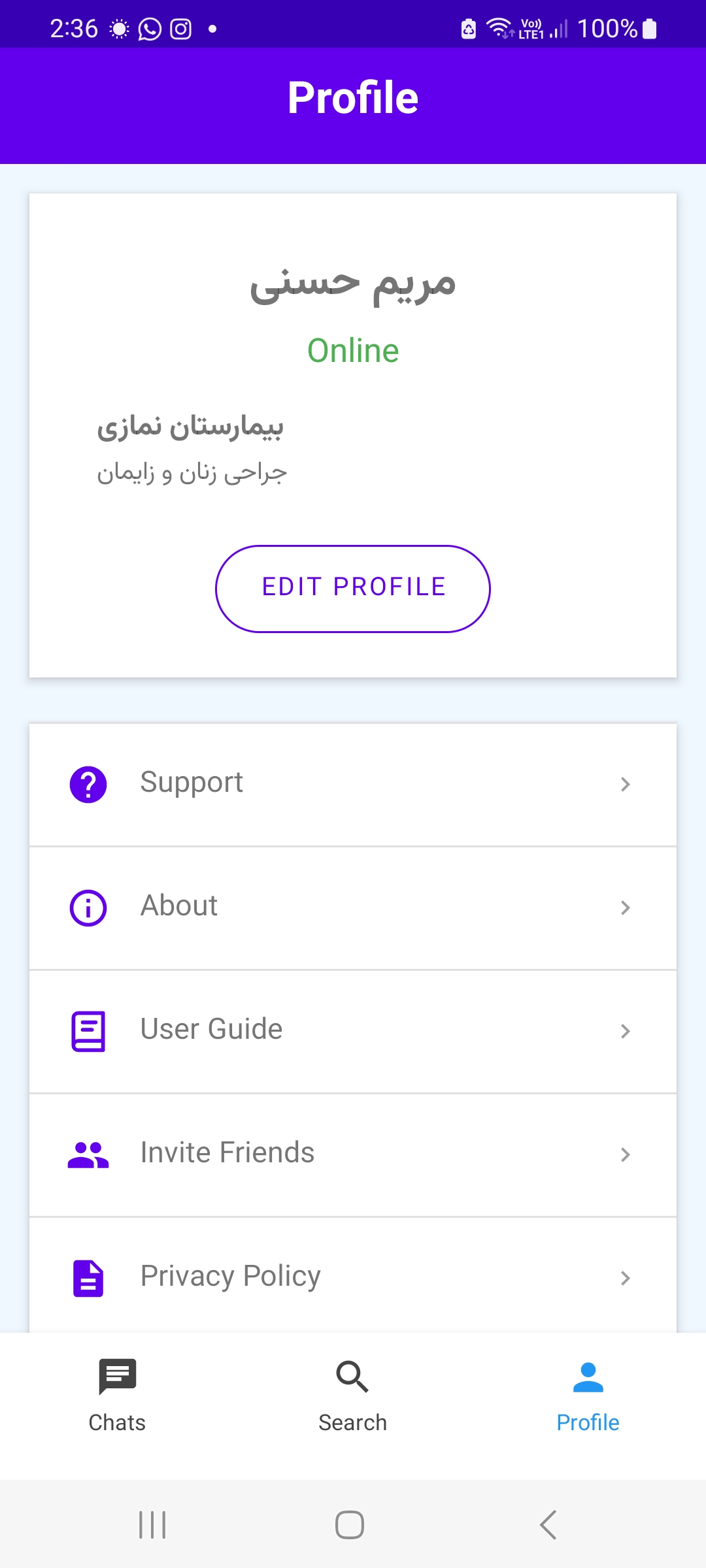
Use this section to update your profile, invite friends, view user
guides, receive support, and access privacy-related information.
-
Open the profile page.
-
If you want to change your profile information, tap “Edit
Profile”.
-
Tap “Support” and describe the problems you have encountered
while using the application and our services. We welcome your
suggestions for improving our services, as well as reports of
possible bugs or issues. Our response will be sent to the email
address you provided within a maximum of one business day.
-
If you are a staff user or chat user, you will see the list of
centers and departments where you have been registered.